
It's the end of the month — and you're left scratching your head.
- •The job looked busy.
- •Crews were flat out.
- •Plant ran all week.
But the numbers don't line up.
- •Labour's higher than planned.
- •Plant hours feel off.
- •Attachments didn't get charged.
You're jumping between timesheets, logbooks, and spreadsheets trying to work out what actually happened.
- •Was it overtime?
- •Was plant sitting idle?
- •Or was it just bad data?
You don't know — and that's the problem.
CivDocs changes this.
Construction management software for civil contractors.
Pre-starts, timesheets, plant logbooks, and cost tracking — all connected, approved, and trusted.

How it works
See how site data flows into live project costs
Cost tracking
Scopes, cost codes, budgets and real-time actuals
Pre-Starts
Digital safety checks with fault reporting and PDF records
Timesheets
Hours, leave, approvals and payroll PDFs in one flow
How CivDocs Works
From messy site data to trusted project numbers.
CivDocs turns your daily site activity into live project costs — automatically.
- •Pre-starts capture the machines used on site and apply the correct daily plant rate to the plant cost code.
- •Timesheets feed labour hours directly into labour cost codes as they're approved.
- •Materials are added by supervisors and allocated to the correct material cost codes.
Every entry is approved and locked to the job. Costs roll up into your project scope in real time — so budget vs actuals are always current.
No spreadsheets. No backtracking. No waiting until the end of the month to find problems.
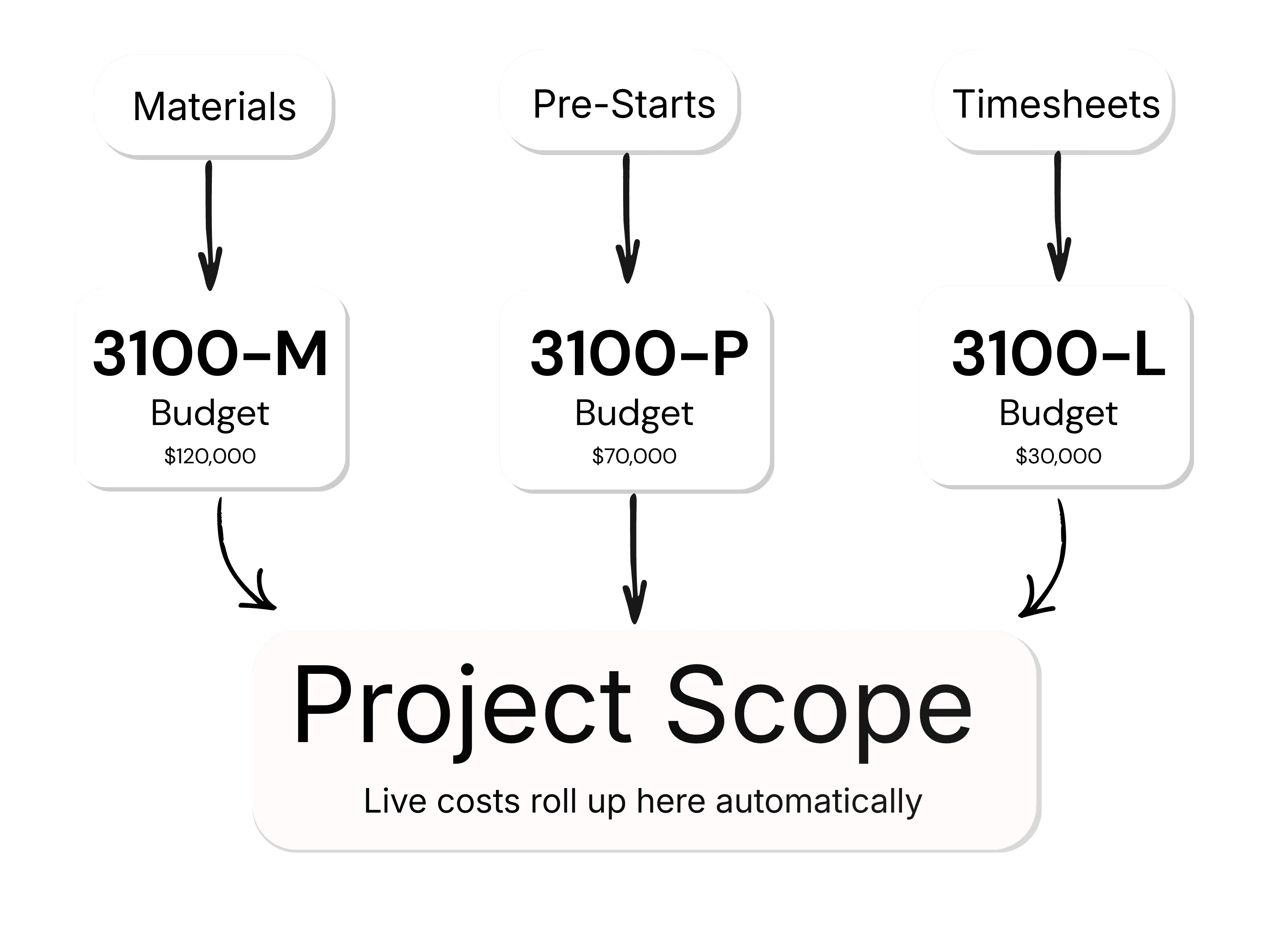
Approved site data → cost codes → live project scope → trusted reporting
Cost Tracking
Track project costs with clarity and confidence.
CivDocs automatically captures labour, plant, materials and progress data and keeps your budgets updated in real-time.
How Cost Tracking Works
Cost tracking in CivDocs is built around project scopes — measurable work items like 300m of AGI or 2500t of rock install. When you create a scope, you attach the specific cost codes to it and set the budget inside those cost codes. From there, CivDocs automatically posts real costs to the right code based on what your team logs each day.
- Timesheets post to the scope's Labour cost code
- Pre-starts post machine day rates to the scope's Plant cost code
- Materials added by supervisors post to the scope's Material cost code
- Daily progress updates the scope quantity so you can see overall cost per unit
Labour Costing
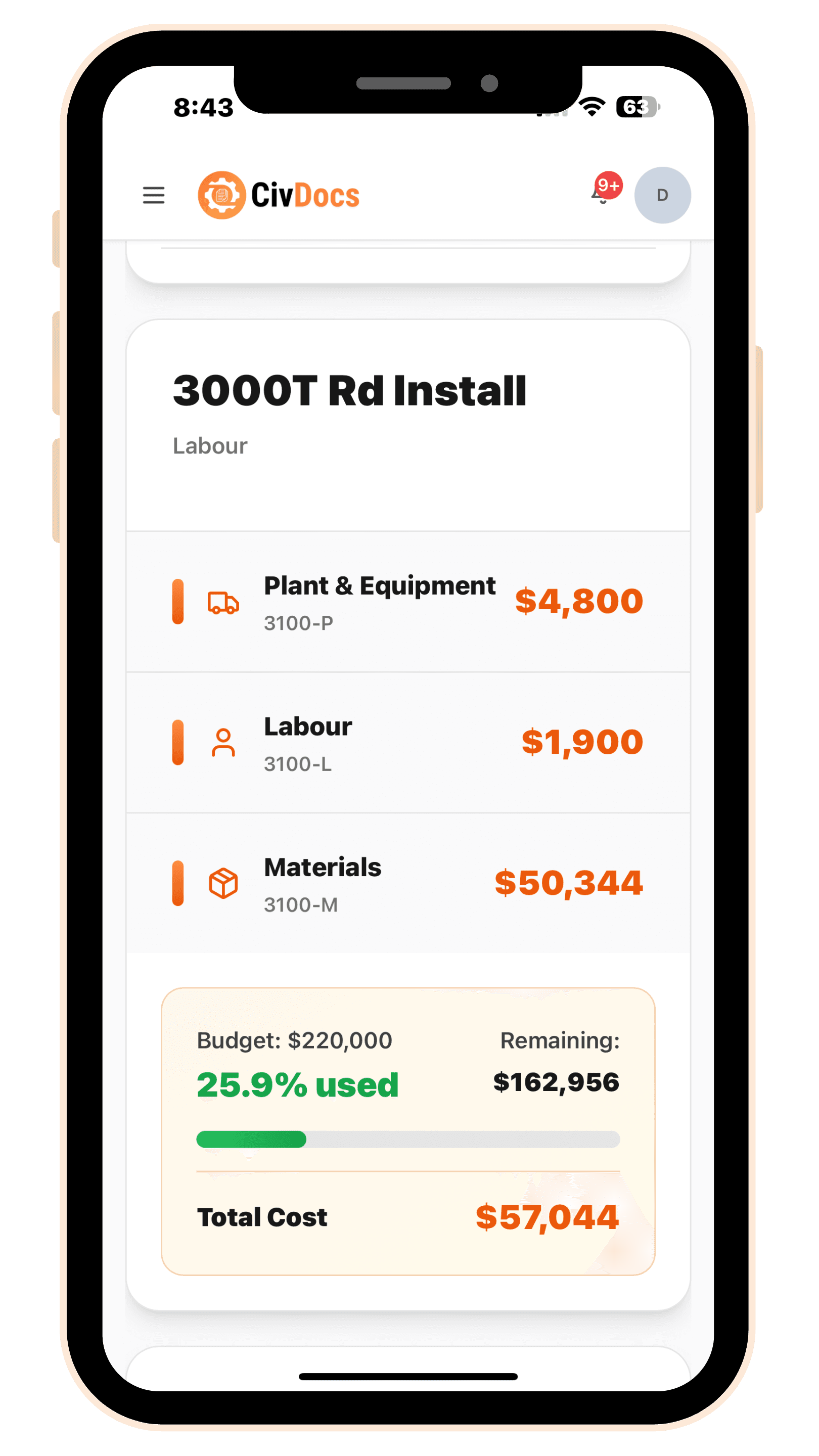
Labour cost is calculated from timesheets. Each employee has an hourly rate, and when they select a project + scope when filling their timesheet out, CivDocs automatically posts that cost into the scope's Labour cost code.
- Employee hourly rates stored in the system
- Project and scope selection in timesheets
- Automatic roll-ups into project budgets
Plant & Equipment Costs
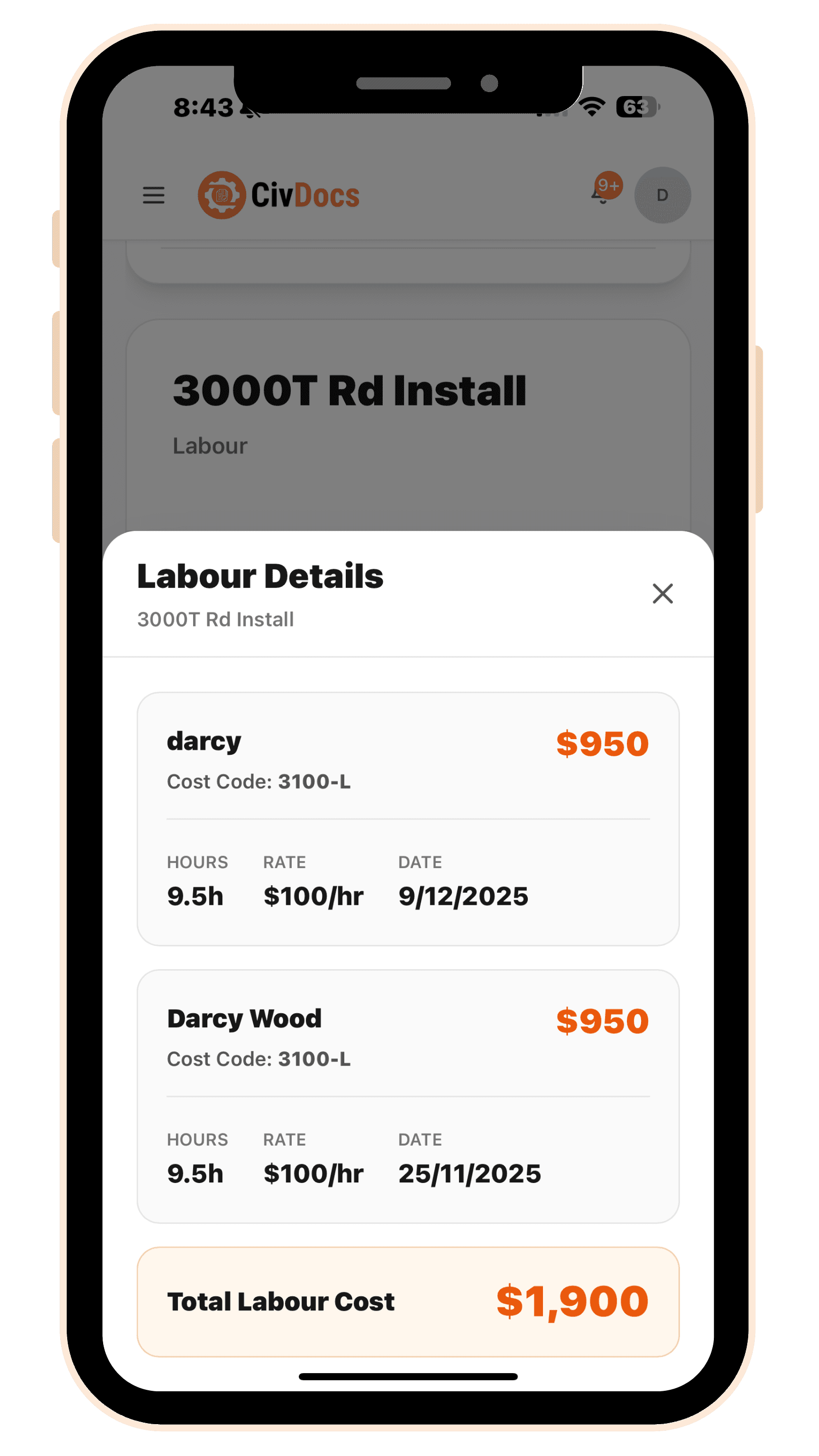
Pre-starts post machinery day rates into project scopes. When an operator completes a pre-start and selects the project + scope, CivDocs posts that day rate into the scope's Plant cost code. If multiple machines work the same scope, you'll see multiple pre-starts — and multiple plant cost entries.
- Machine day rates configured per asset
- Operators select project and scope in pre-starts
- Costs automatically allocated to plant cost codes
Materials Costing
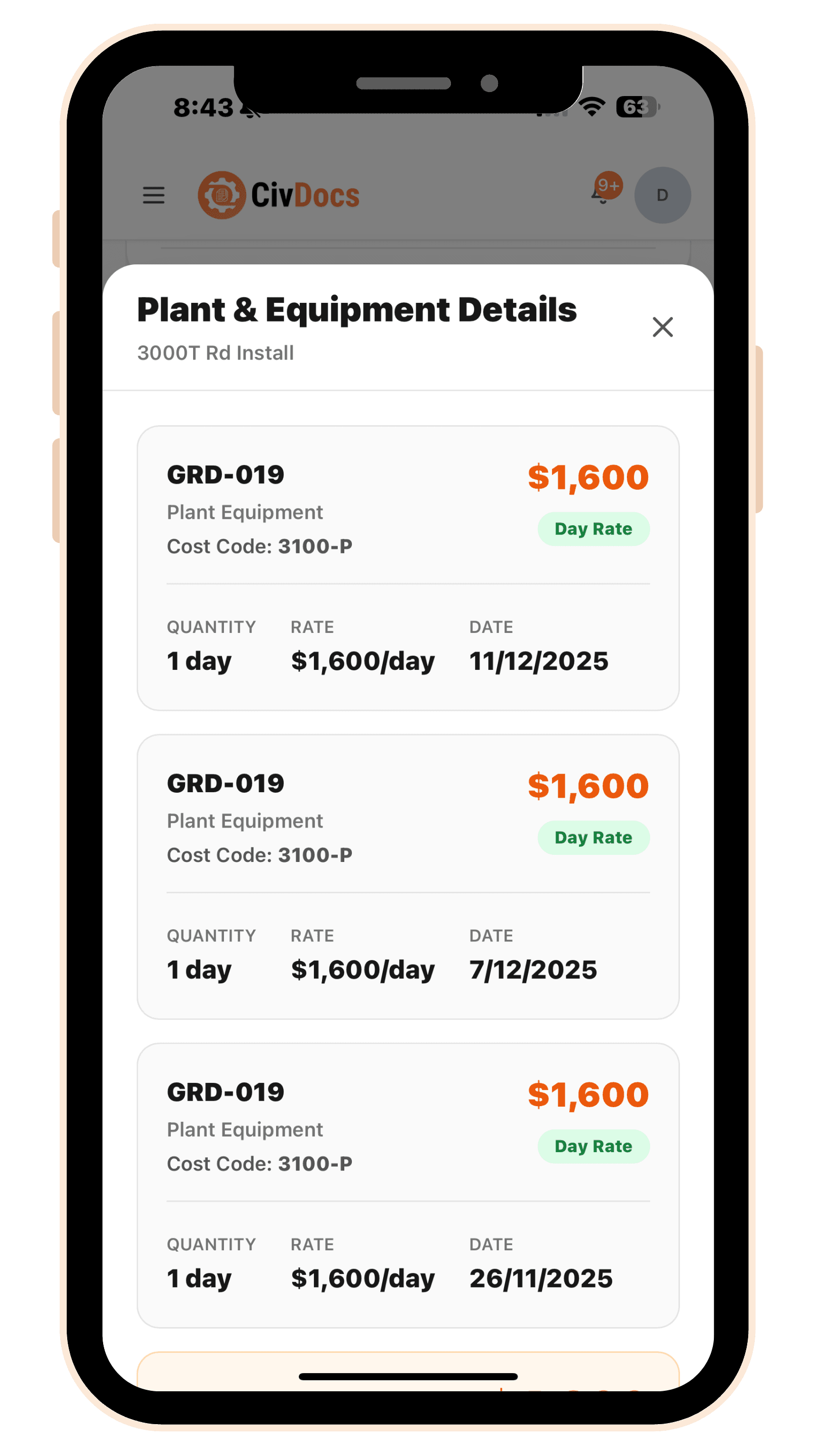
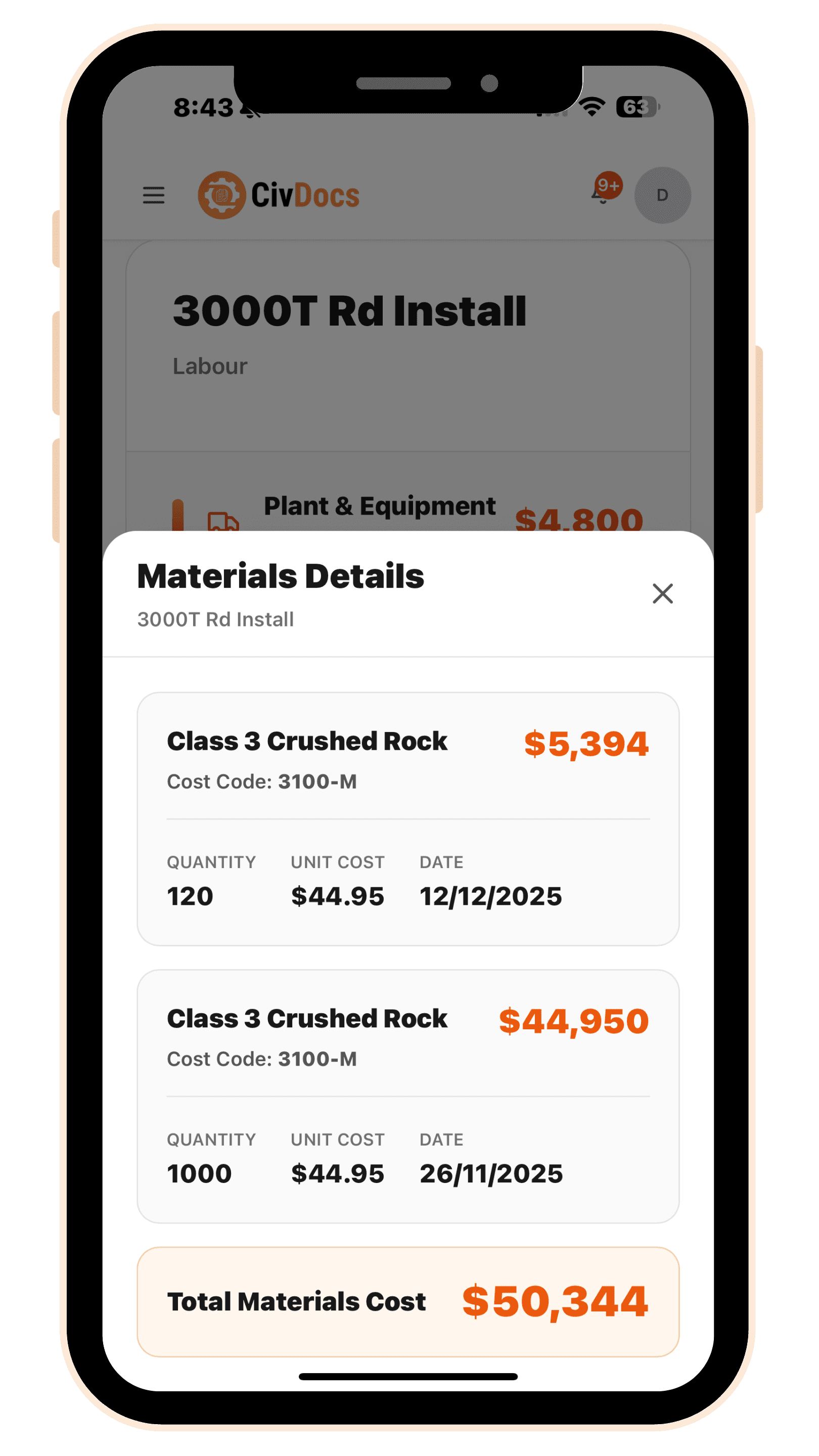
Supervisors add materials used on site through the dashboard. Your materials library stores the unit and rate (and you can create materials on the fly). When materials are added to a scope, CivDocs posts the cost into that scope's Material cost code and updates actuals instantly.
- Supervisors add materials to project scopes
- Materials library stores rates and unit types
- Costs instantly update project actuals
Project Scopes
Each scope has a planned quantity (200m, 4000t, etc.) and the specific cost codes you assign to it for Labour, Plant and Materials. You also set your budgets inside those scope cost codes, so budget vs actual is always comparing apples with apples.
- Each scope has a planned quantity
- Cost codes for Labour, Plant, and Materials
- Real-time budget vs actual tracking
.png&w=3840&q=75)
Daily Progress Updates
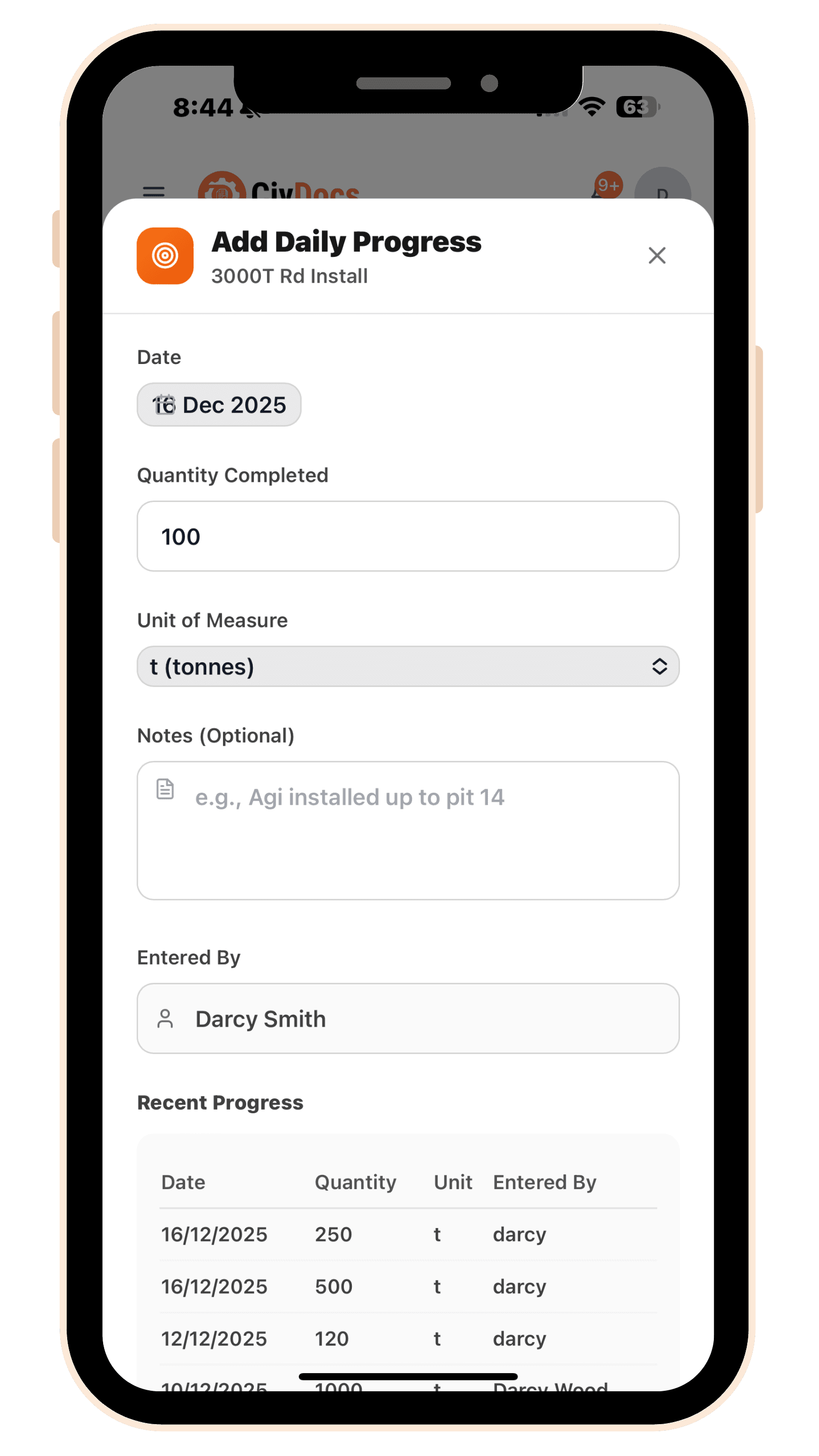
Supervisors enter daily progress updates for each scope. For example: Scope: 4000t planned. Supervisor enters 1500t completed today. CivDocs updates % complete, cost-per-unit, and forecasts remaining work.
- Supervisors enter daily progress quantities
- Automatic percentage complete calculation
- Cost-per-unit and forecast updates
Cost Codes
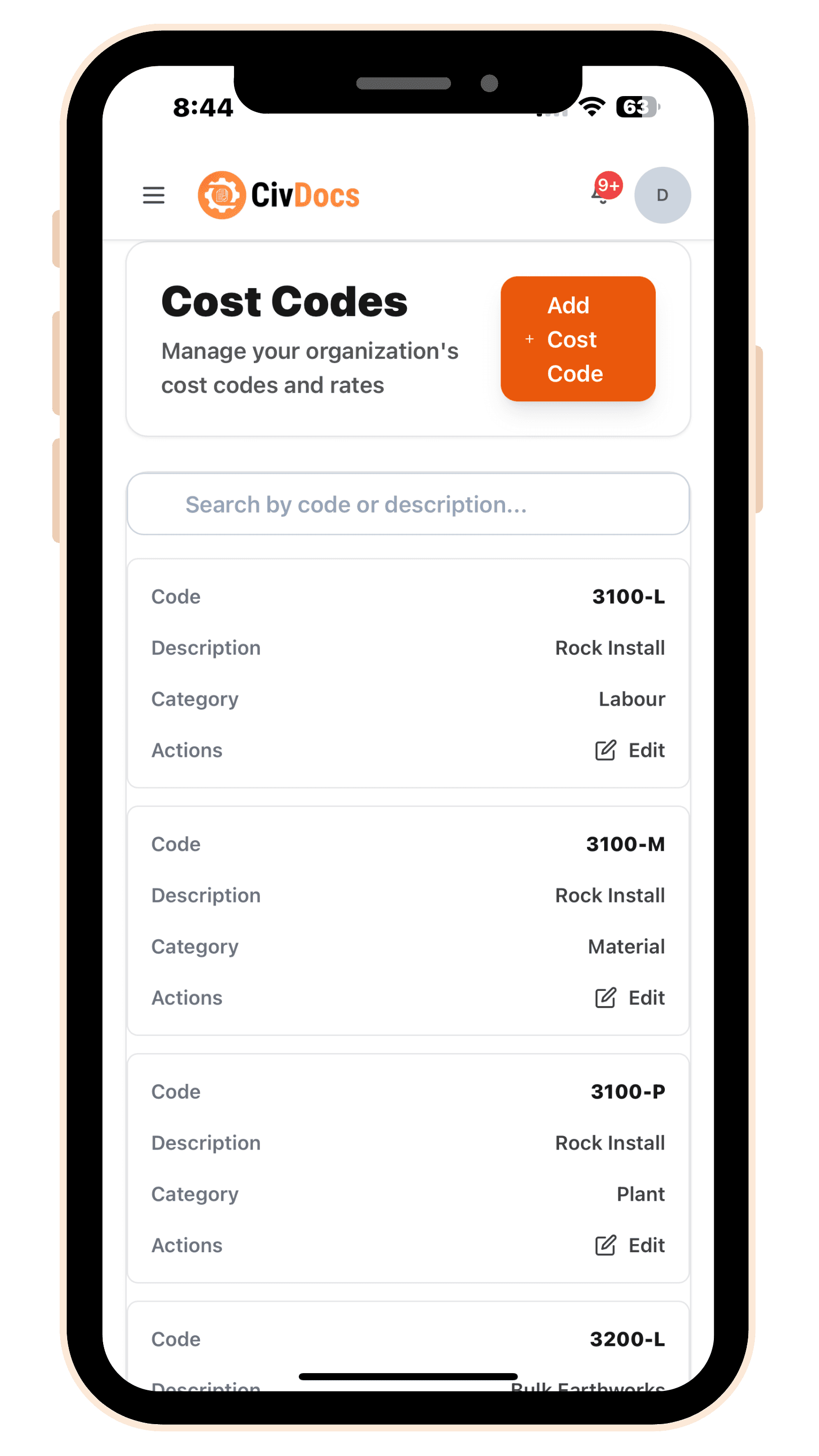
Your organisation has a library of cost codes. CivDocs comes with common defaults (for example: 3100-L is all rock install Labour, 3100-P is all rock install Plant, 3100-M is all rock install Material), and you're encouraged to create your own to match how your business wants to track costs. When you build a scope, you choose which codes that scope will use — then CivDocs posts costs automatically into them.
- Organisation-wide cost code library
- Add, edit, and delete codes as needed
- Scopes use codes to track costs
How All Costs Roll Up
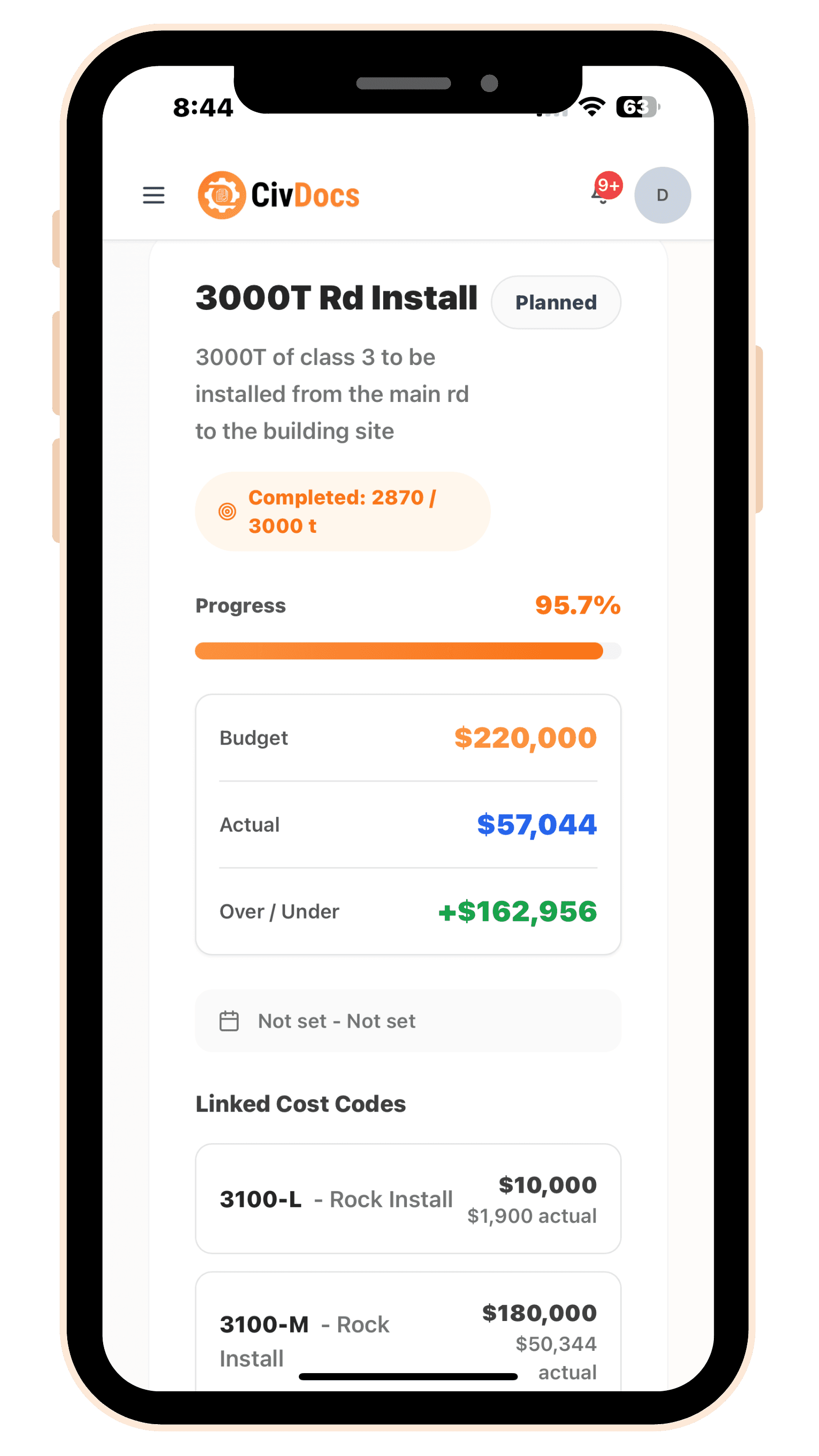
Every transaction lands on a project + scope + cost code. Labour comes from timesheets, plant comes from pre-starts, and materials come from supervisors — and daily progress updates the completed quantity. That gives you a single real-time view of actual cost, budget vs actual, and overall cost per unit at the scope level.
- Labour → from Timesheets
- Plant → from Pre-starts
- Materials → from Supervisors
- Progress → from Daily updates
- All feed into: Actual cost, Over/under, Remaining budget, Performance summary
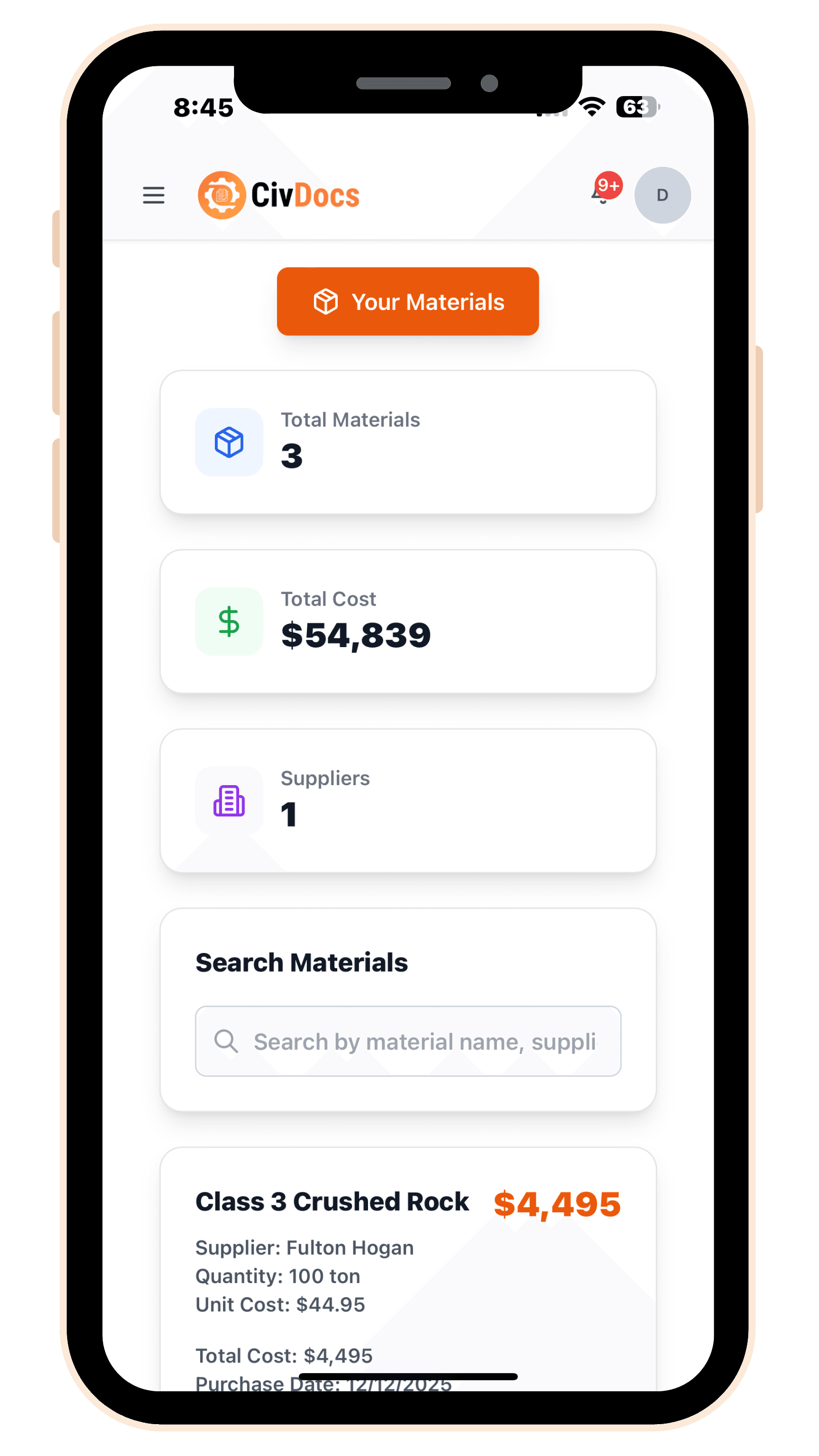
Materials Library
Store material name, unit type, and unit rate in your materials library. Supervisors pull these materials into progress entries, ensuring consistent pricing and accurate cost tracking.
- Store material name, unit type, and unit rate
- Supervisors pull materials into progress entries
- Consistent pricing across all projects
Cost Reports
Generate comprehensive cost reports showing budget vs actual, remaining budget, over/under analysis, and cost breakdown by category. All reports update in real-time as costs are added.
- Budget vs actual comparison
- Remaining budget tracking
- Over/under analysis
- Cost breakdown by category

Supervisor Tools
Supervisors have everything they need in one place: add daily progress, add materials, approve timesheets, and review scope performance — all from their dashboard.
- Add daily progress updates
- Add materials to project scopes
- Approve timesheets and leave requests
- Review scope performance and budgets
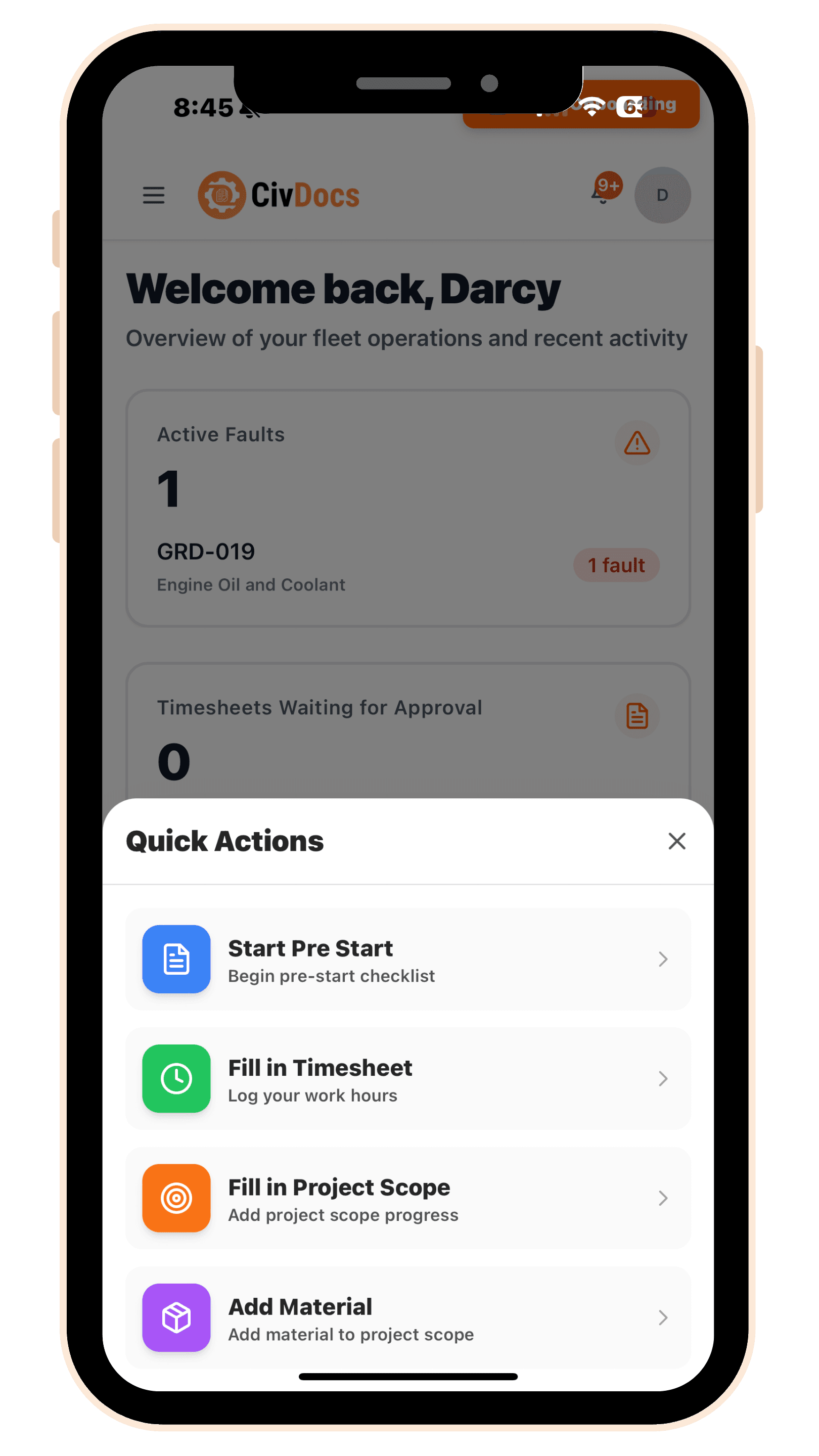
Everything supervisors need
Add daily progress, add materials, approve timesheets, and review scope performance all from one dashboard.
Digital pre-starts that simply make sense.
A fast, guided workflow that keeps your team compliant and your machines checked every morning.
How our Pre-Starts Work
Swipe to view steps →
Enter project & machine details
Select your project, asset number, operator and start your pre-start.
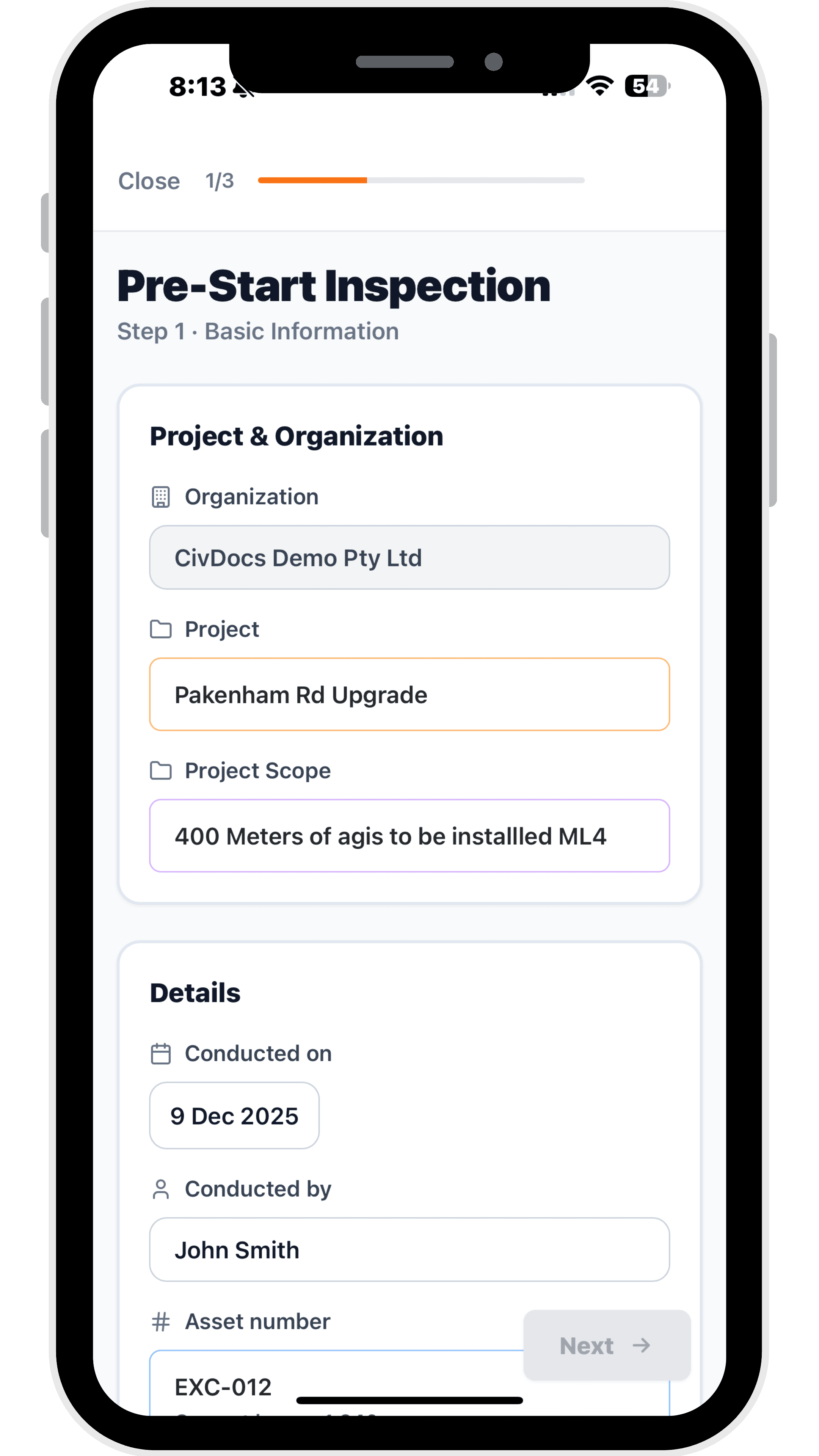
Complete your digital checklist
Tick items, add faults, attach photos and record plant hours.

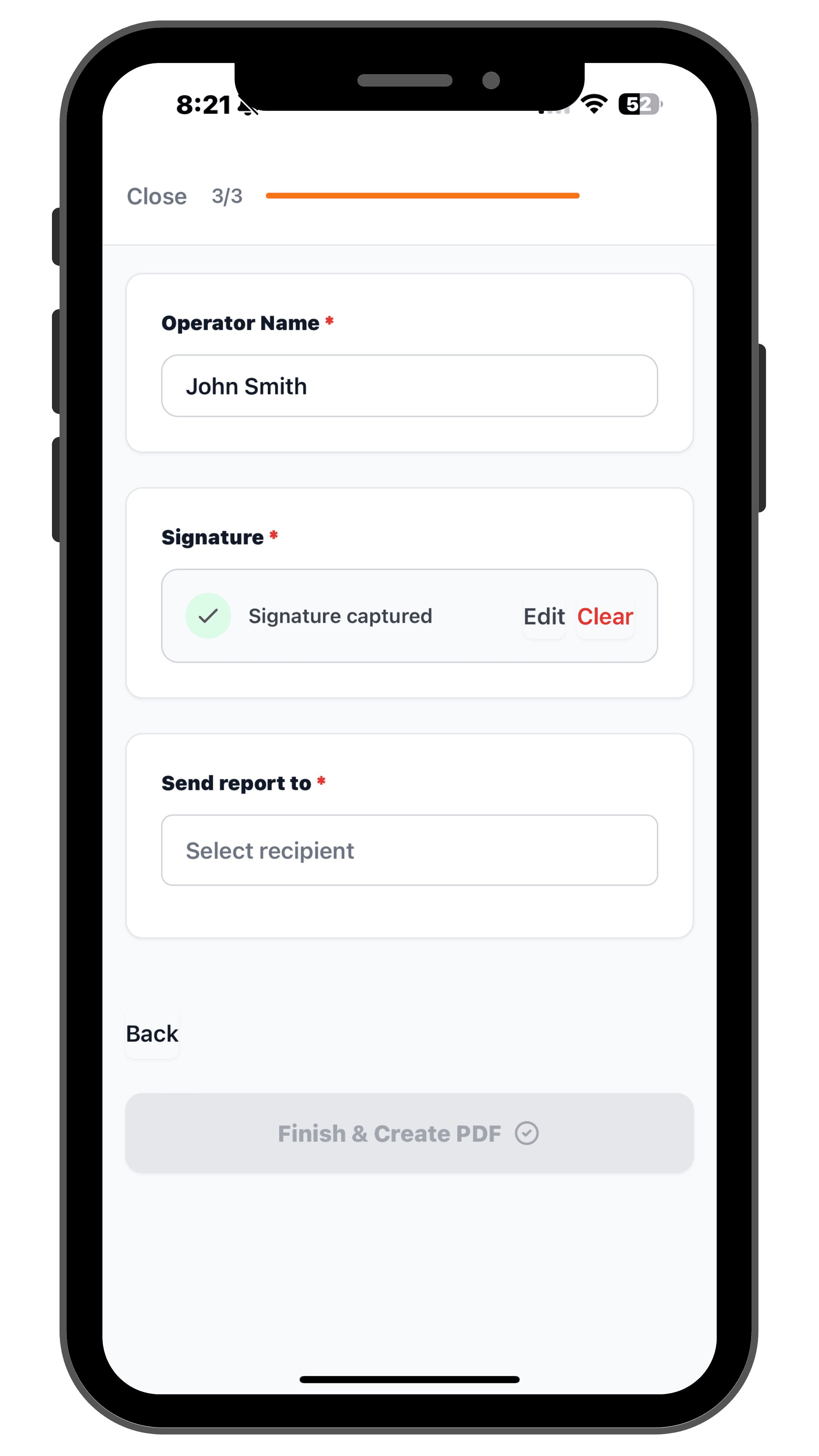
Sign your report and generate the PDF
Add your signature, choose recipients and create the PDF.
Enter project & machine details
Select your project, asset number, operator and start your pre-start.
Complete your digital checklist
Tick items, add faults, attach photos and record plant hours.
Sign your report and generate the PDF
Add your signature, choose recipients and create the PDF.
Fix issues before they become downtime.
Operators can report issues like hydraulic leaks, broken teeth or GPS / UTS issues directly in CivDocs. Supervisors are alerted instantly so problems are handled before they cause costly delays.
- Instant notifications to supervisors
- Faults stored in machine history
- Issues fixed before they blow out costs

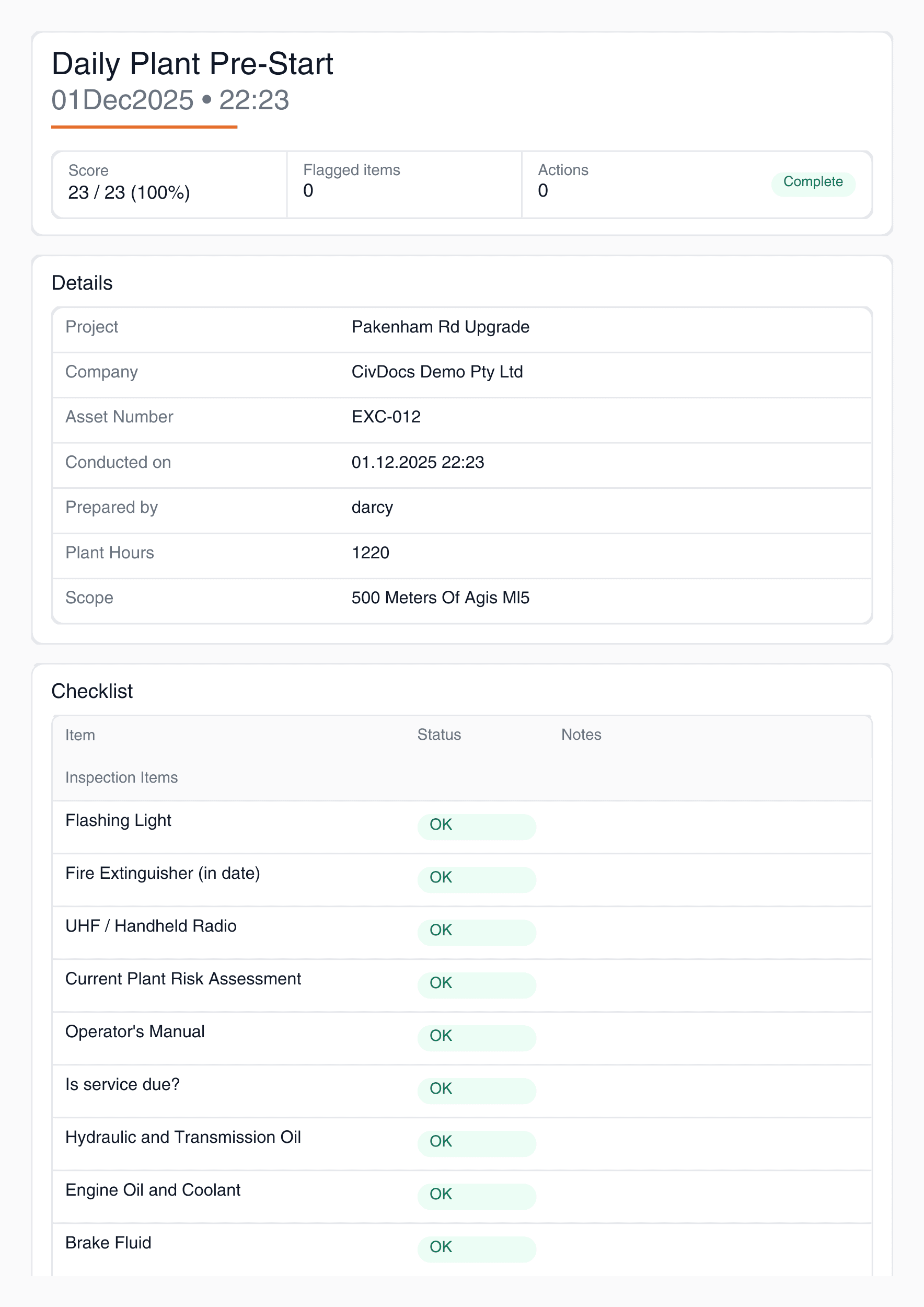
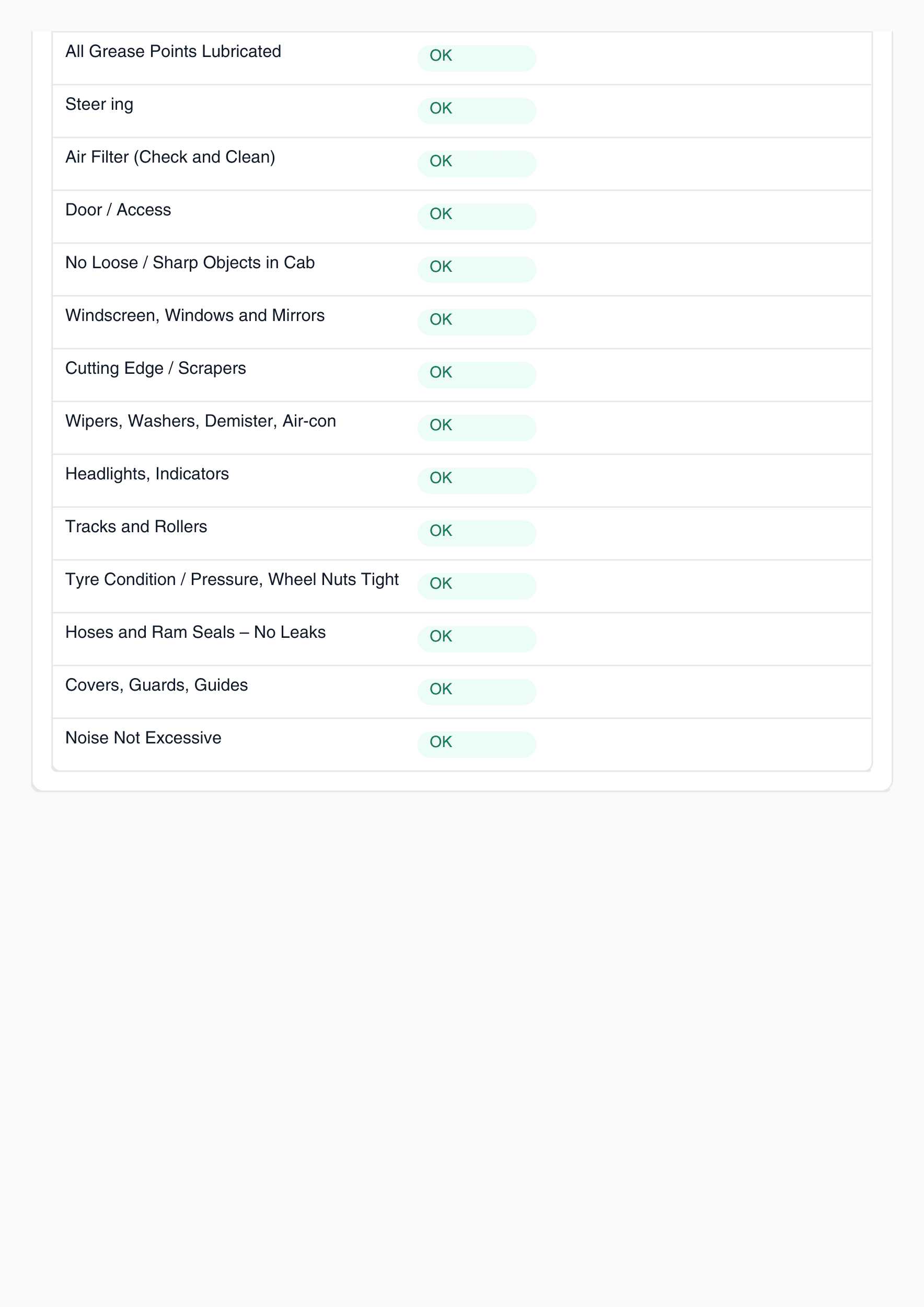
Every Pre-Start becomes a clean, compliant PDF.
Created instantly and stored under the project for easy audit and safety compliance.
- Timestamped and signed
- Includes photos and fault notes
- Organised by project and operator
Keep Your Crew Safe & Compliant
Streamline your safety protocols with digital pre-start checklists. Ensure every crew member is properly equipped and briefed before starting work.

Built for real crews — simple, fast and familiar.
CivDocs Pre-Starts are designed for non-techy operators. Large buttons, clean screens and a simple flow make it easy for anyone to use on site.
- Works on phones, tablets and desktops
- Zero learning curve
- Optimised for on-site use
“Pre-start paperwork used to take ages every morning. CivDocs makes it quick and supervisors get reports instantly.”
— John Lynch, JAL Civil Earthworks
Digital timesheets your crew will actually enjoy using.
Log hours by project, submit once a week, and keep payroll and approvals in one clean workflow.
How Timesheets Work
Swipe to view steps →
Select project & scope
Pick the project and scope you worked on so every hour is linked back to the right job.
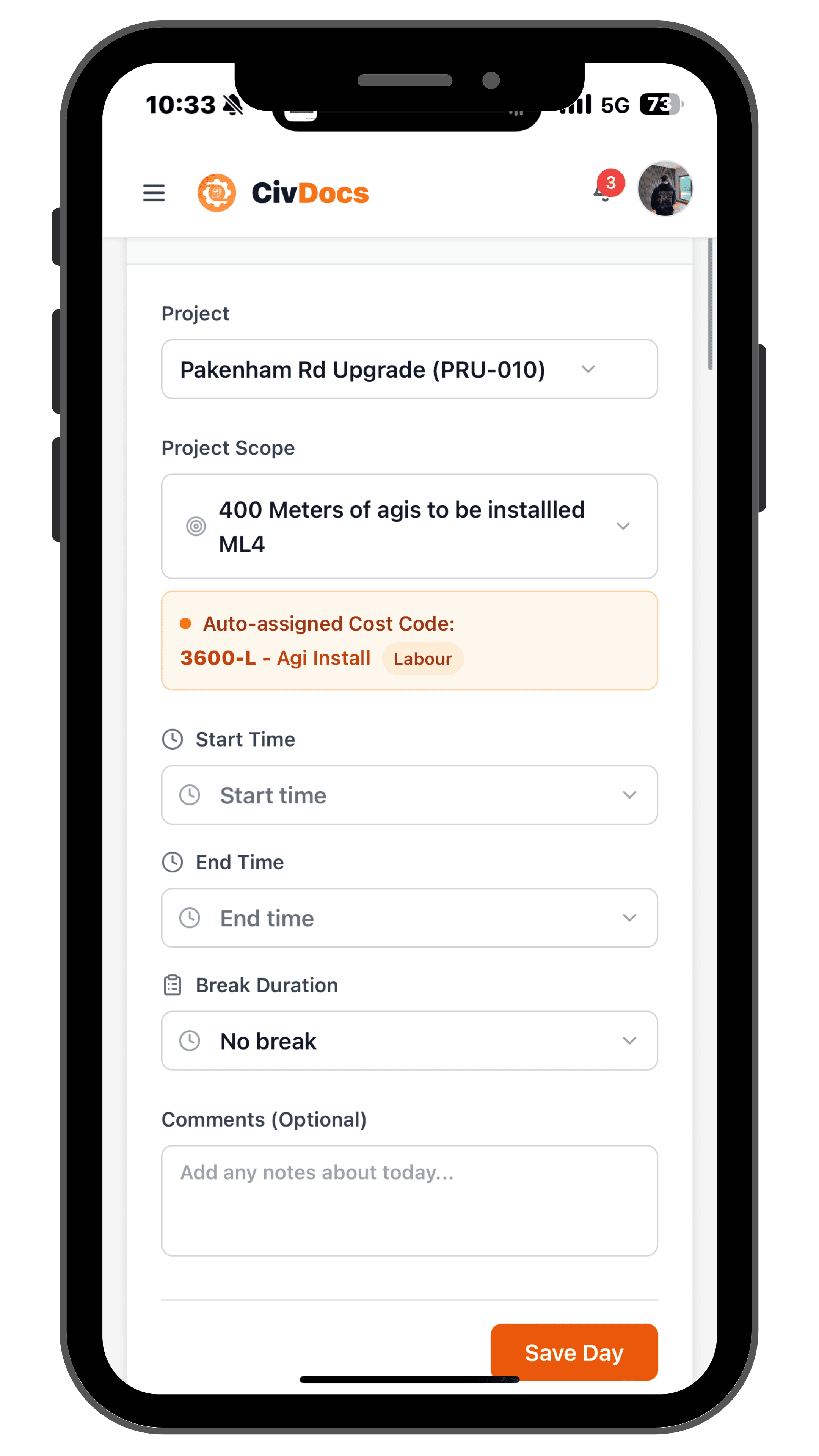
Add start, finish & breaks
Enter your start time, finish time and break — CivDocs calculates the hours for you.
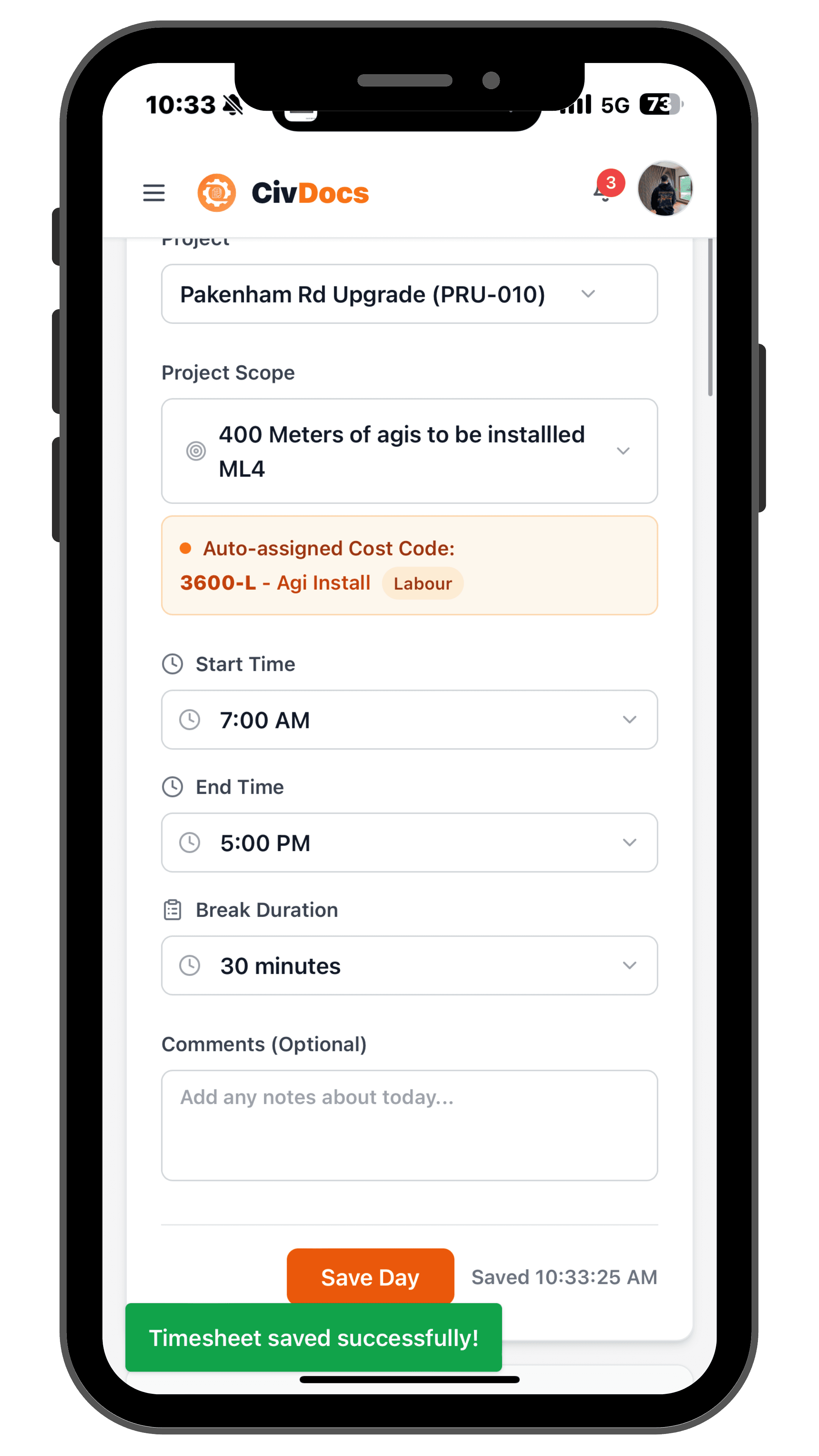
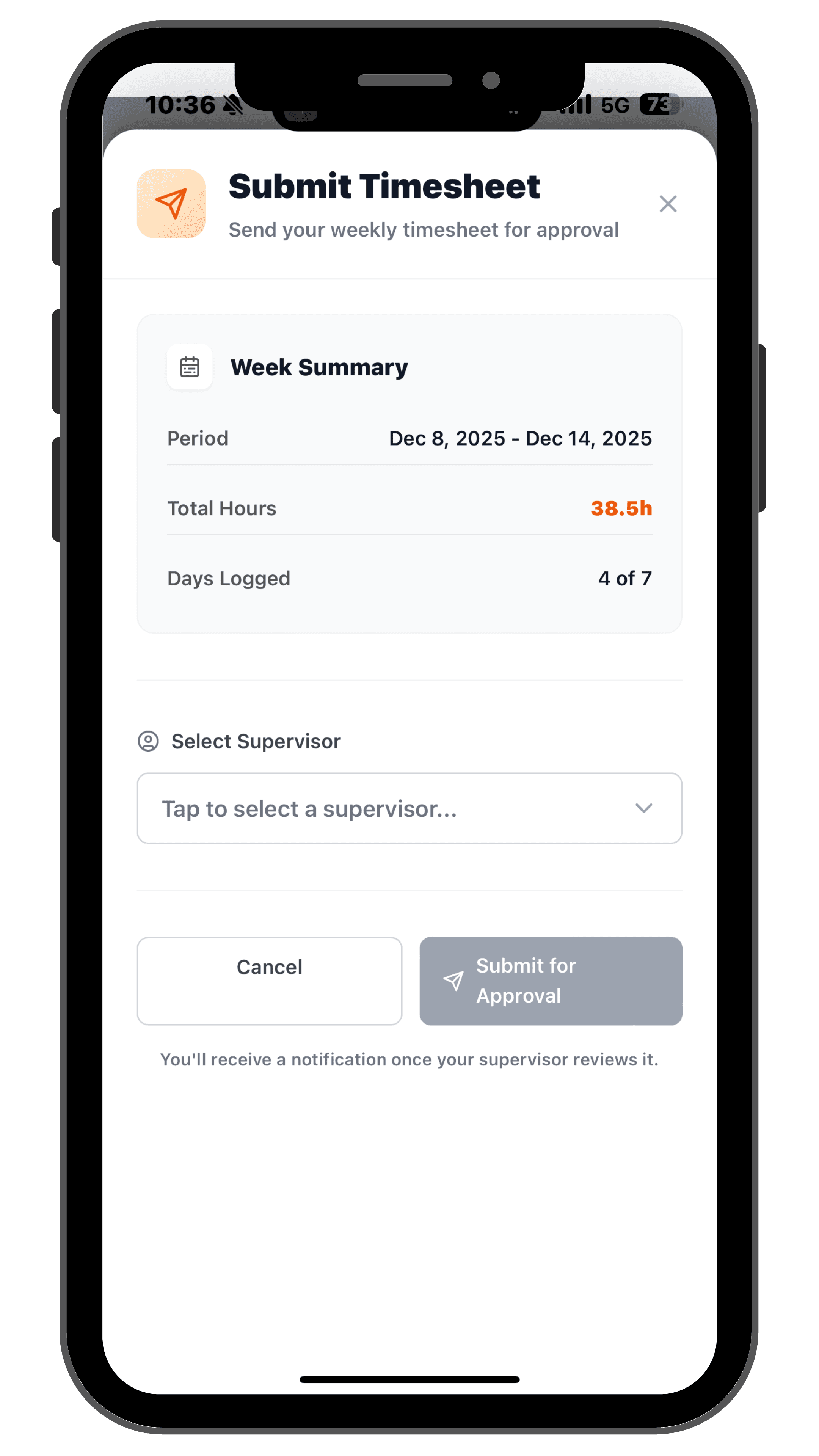
Submit your week for approval
At the end of the week, submit your timesheet to a supervisor instead of chasing signatures on paper.
Select project & scope
Pick the project and scope you worked on so every hour is linked back to the right job.
Add start, finish & breaks
Enter your start time, finish time and break — CivDocs calculates the hours for you.
Submit your week for approval
At the end of the week, submit your timesheet to a supervisor instead of chasing signatures on paper.
Weekly PDFs built for payroll
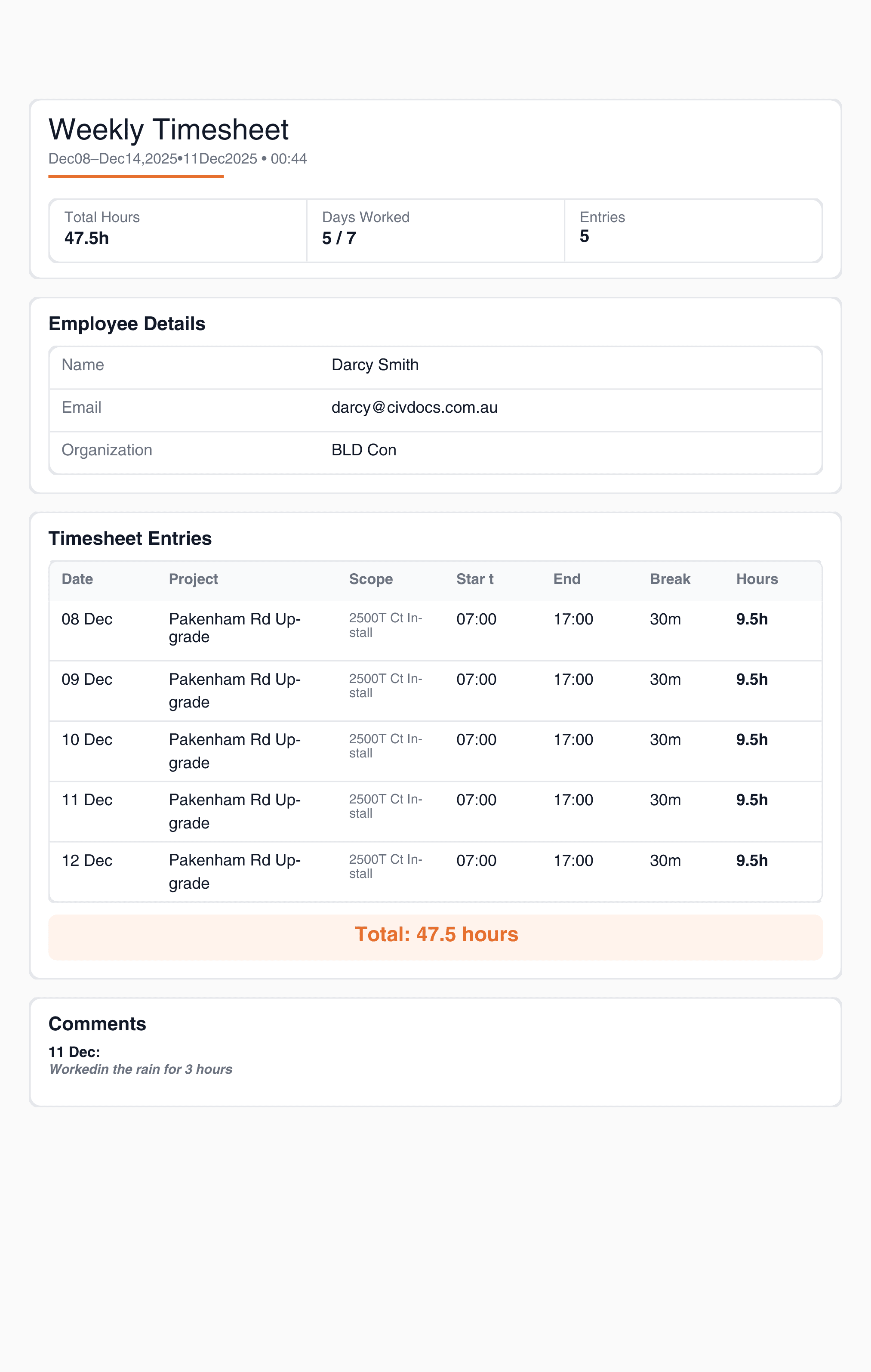
Every submitted timesheet generates a clean PDF for that employee's week — ready to send straight to payroll or keep on file.
- One PDF per employee, per week
- Hours broken down by project and scope
- Notes, approvals and leave all captured in one place
Leave requests in the same flow as timesheets
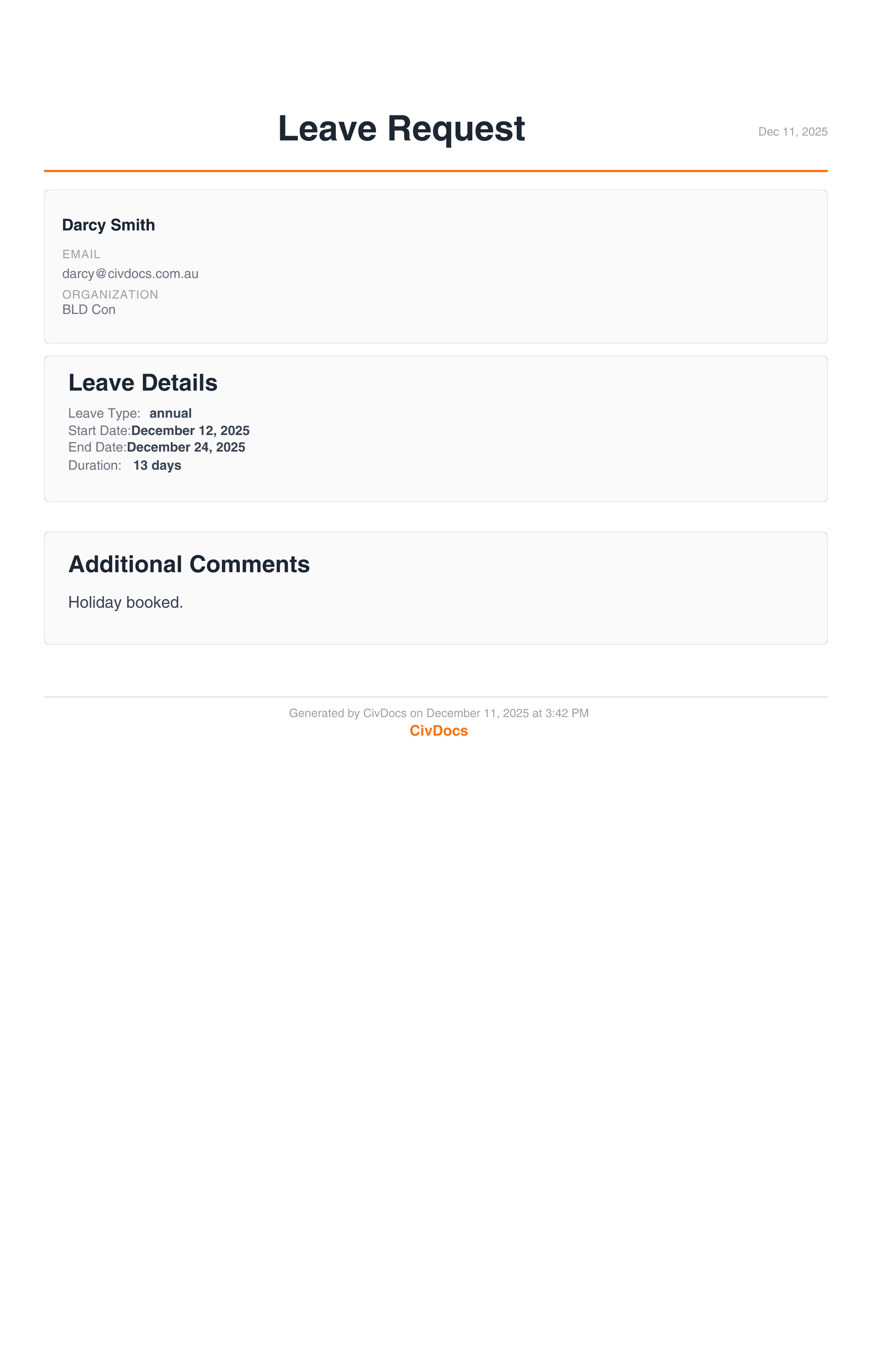
Employees can request annual leave, sick leave or RDOs from the same place they submit their hours, so supervisors see the full picture for the week.
- Select leave type — annual, personal, sick, RDO, LSL or custom
- Choose the date range and add any notes
- Send to a supervisor for approval with one click
- Approved leave is stored with the employee's timesheet history
Supervisor sign-off without chasing paper
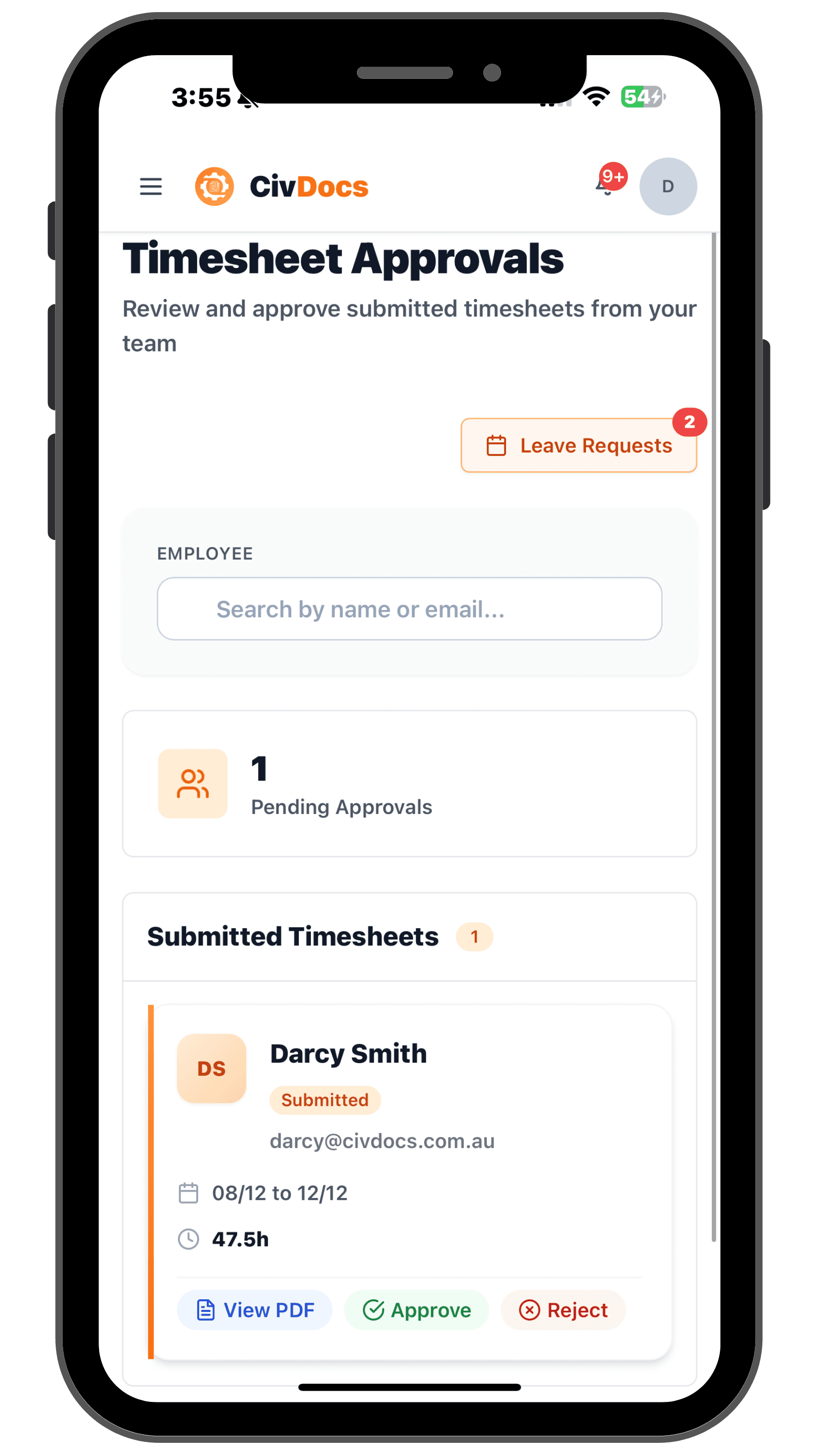
Supervisors get a central queue of submitted timesheets and leave requests, so approvals are quick, consistent and auditable.
- See all pending timesheets by employee and week
- Open a submission, review hours, notes and leave in seconds
- Approve, reject or request changes — with a full history of who signed off and when
- Keep a clean audit trail for payroll, compliance and disputes
Take control of your project costs — without spreadsheets.
See where every dollar goes with real-time cost tracking that updates automatically from timesheets, pre-starts, and materials.
Get started in minutes